
|
APPLICATION: Using our new Products Assortment, you can decrease the number of schedules on Involves Stage, speeding up the registrations as well as keeping your data consolidated. PRE-REQUIREMENTS: This resource was released in a trial format for a few clients. But don’t you worry! Our Support and Development teams will be working day and night to refine our Product Assortment resource. |
One of the troubles you might face when scheduling tasks is the volume of information contrasted with the automation of the process. That’s why our new product assortment resource was developed: to help you unburden the scheduling process. Sounds promising, right?
Besides making the process easier and decreasing the number of schedule registrations, our new assortment also eliminates the need to define an assortment through banners and regionals, unifying the definition of which products should be surveyed and in which POS.
ALRIGHT, BUT HOW DOES IT WORK?
Our Product Assortment is an option within Task Scheduling. When using the assortment, you can define which POS segments will receive a task, and for each segment, which products will be surveyed.
LET’S SEE AN EXAMPLE!
Assume you want to define a new price task for two regionals and a specific chain. You want to survey the following products on the Café & Latte chain at the New York regional:
- Biscuit 10 oz
- Sandwich cookie 6.5 oz
And you also want to survey these products around the Albany regional, in the same chain:
- Sweet biscuit 10 oz
- Cookie 15 oz
Using our new assortment, you can adopt both settings in a single scheduling! Though, in order to succeed, you should inform all these settings at once. And how can you set this up? Easy. First, we’ll use a table.
In this example, we must inform which store features and which products, should be available in each assortment. The result would be something like this:
|
Assortment |
Regional |
Chain |
Product |
|
Example Assortment 1 |
New York |
Café & Latte |
Biscuit 10 oz |
|
Example Assortment 1 |
New York |
Café & Latte |
Sandwich cookie 6.5 oz |
|
Example Assortment 2 |
Albany |
Café & Latte |
Sweet biscuit 10 oz |
|
Example Assortment 2 |
Albany |
Café & Latte |
Cookie 15 oz |
The table displays the same kind of information presented above, though in a matrix format allowing its registration on the system.
BUT HOW CAN I ACTUALLY DESIGN A STRATEGY ON THIS NEW ASSORTMENT?
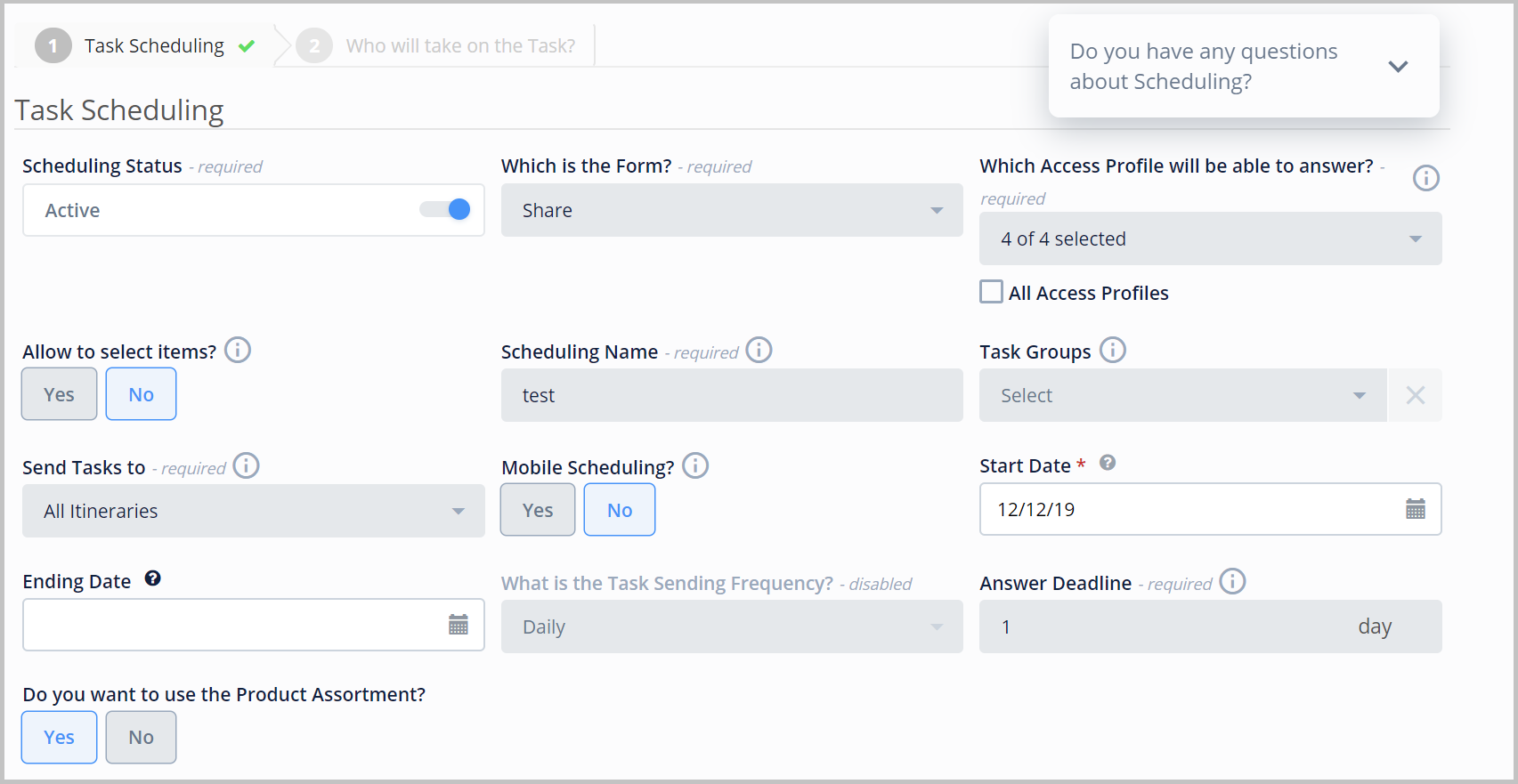
In order to use a new assortment, you should first create or edit a task schedule. So go to the Task Scheduling page and click on + New. Then you’ll be redirected to the following page:
|
NOTE: To use our new assortment format, the Trigger Mode settings should follow the specified guidelines: All Selected POS, All Itineraries or Only POS with Itinerary. Besides, make sure not to select the Mobile Scheduling option. Our new format will be available on your page after you define the settings above accordingly. |
After providing all the necessary information for your scheduling, please enable your Assortment by clicking on Yes. This will trigger some changes in your schedules:
- The Survey Items will no longer be available;
- The Select Recipients options will look different on the second tab;
- The former assortment format (by banner or regional) will no longer work for these schedules.
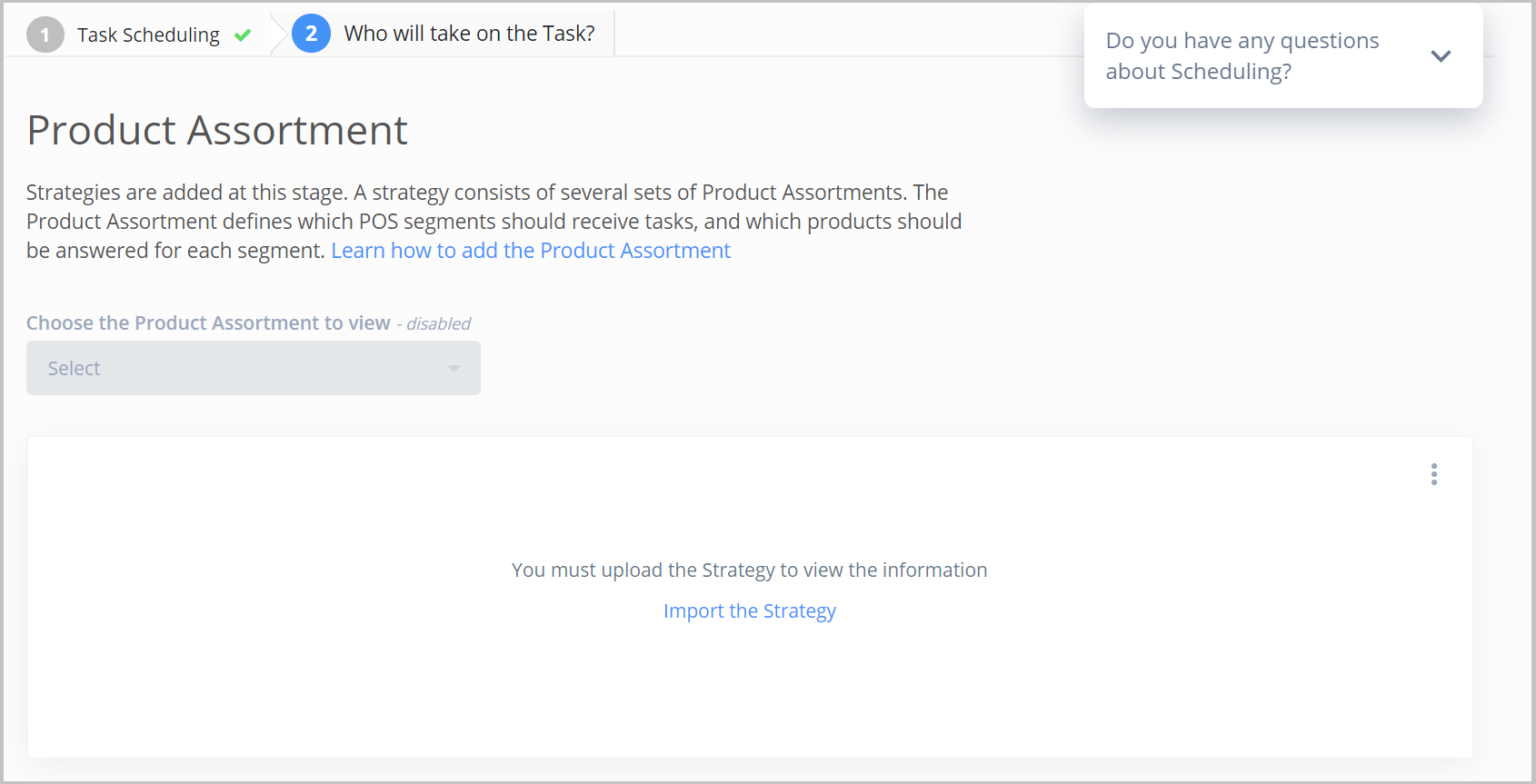
After finishing the settings on the first page, click on Save and continue to proceed. This will take you to the Product Assortment page where you’ll be able to import your strategy.
|
REMINDER: Our new Product Assortment is currently on pilot mode. So, if you can access it, note that we’re at your service and eager for your feedback. Give our Support Team a call or contact your CS/IS! |
Comments
Please sign in to leave a comment.